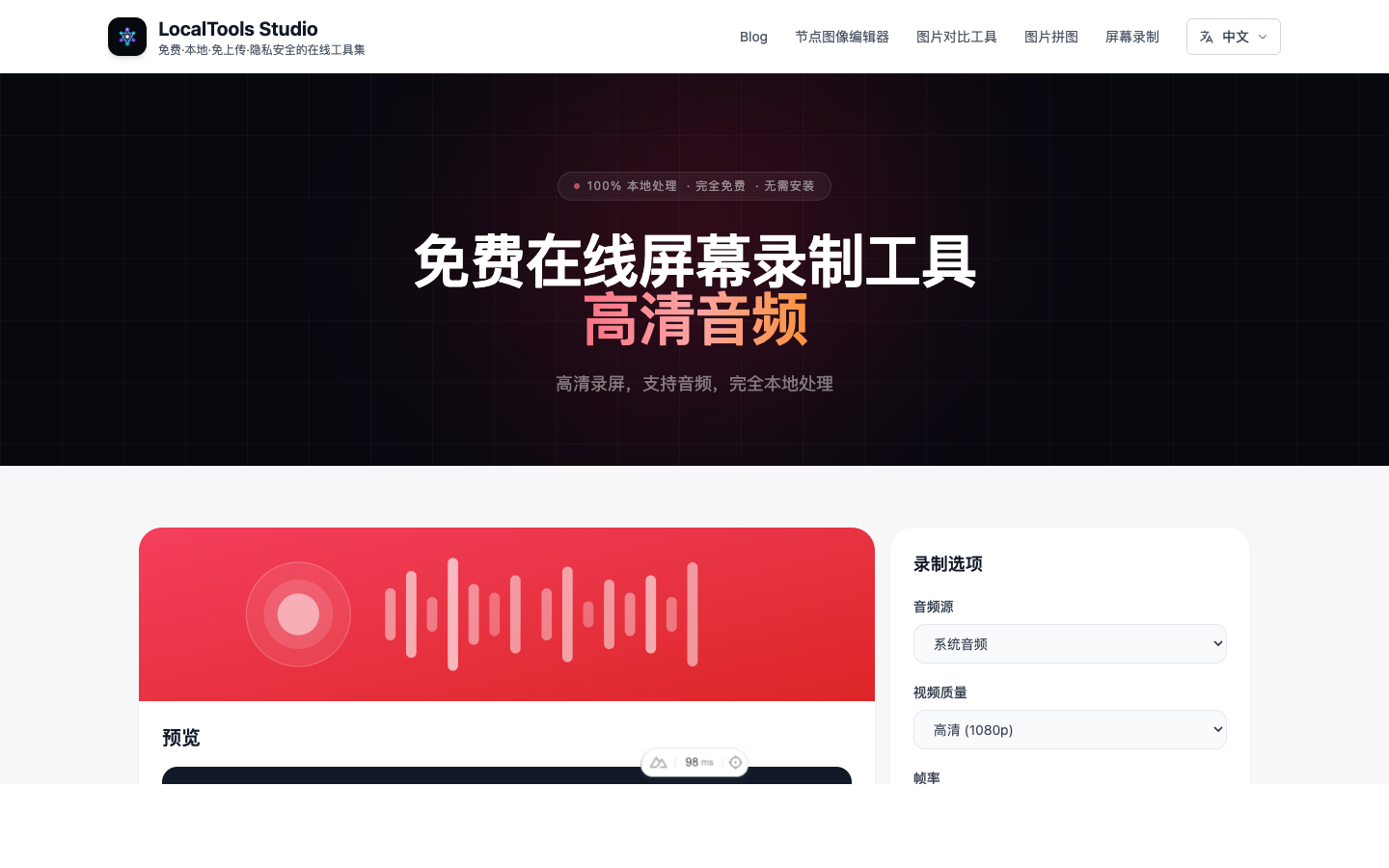
Want to record your screen without installing software? LocalTools Studio's browser-based screen recorder lets you capture your screen instantly – completely free, private, and works on any device.
What Is a Browser-Based Screen Recorder?
A browser-based screen recorder captures your screen directly from your web browser without downloading or installing any software. It's perfect for quick recordings, tutorials, or when you're using a computer where you can't install applications.
LocalTools Studio's screen recorder stands out because it's:
- ✅ Instant access – No downloads, no installation, no waiting
- ✅ Cross-platform – Works on Windows, Mac, Linux, and Chromebooks
- ✅ Privacy-first – Recordings stay on your device, never uploaded
- ✅ Completely free – No watermarks, no time limits, no catches
How to Record Your Screen: Step-by-Step Tutorial
Step 1: Open the Screen Recorder
Go to the Screen Recorder tool. It works immediately – no account needed.
Step 2: Start Recording
Click the "Start Recording" button. Your browser will prompt you to choose what to share:
- Entire Screen – Record everything on your monitor
- Application Window – Record a specific program
- Browser Tab – Record just the current tab (best performance)
Step 3: Grant Permission
Select what you want to record and click "Share." The recording begins immediately. You'll see a recording indicator in your browser tab.
Step 4: Stop and Save
When finished, click "Stop Recording" in the tool. Your video will be processed and ready for download as an MP4 file.
💡 Pro Tip: Choose "Browser Tab" for the best recording performance, especially for longer recordings. It uses less system resources than recording your entire screen.
Why Use Our Browser-Based Recorder?
| Feature | LocalTools Studio | Desktop Software | Other Online Tools |
|---|---|---|---|
| Setup Time | ✓ Instant | ✗ 5-30 min install | ✓ Instant |
| Privacy | ✓ 100% Local | ✓ Local | ✗ Cloud Upload |
| Cost | ✓ Free | ⚠ $50-300 | ⚠ Freemium |
| Watermark | ✓ None | ✓ None | ✗ Yes (free tier) |
| Time Limit | ✓ Unlimited | ✓ Unlimited | ✗ 5-10 min limit |
Screen Recording Best Practices
To get professional-quality recordings:
Before You Record
- Close unnecessary apps – Free up system resources for smoother recording
- Clean your desktop – Remove personal files or sensitive information from view
- Plan your content – Know what you want to demonstrate before starting
- Test your audio – If recording voice, do a quick microphone test first
During Recording
- Speak clearly – If narrating, enunciate and speak at a moderate pace
- Move your mouse slowly – Fast cursor movements are hard to follow
- Pause when needed – It's okay to take a moment between steps
- Use keyboard shortcuts – They make demonstrations look more professional
After Recording
- Review your video – Check for mistakes or parts to re-record
- Consider trimming – Remove dead air at the beginning and end
- Compress if needed – Large files can be compressed for easier sharing
Privacy & Security: Your Recordings Stay Local
Privacy is our top priority. Unlike most screen recording tools that upload your videos to their servers, LocalTools Studio processes everything locally in your browser.
What this means:
- 🛡️ Your screen content never leaves your computer
- 🔒 No data stored on external servers
- 👤 No account required – completely anonymous
- 💻 You maintain full control over your recordings
This makes our tool perfect for recording sensitive information, confidential presentations, or private tutorials.
Popular Use Cases for Screen Recording
🎓 Creating Tutorials & Courses
Teach others how to use software, navigate websites, or complete tasks. Screen recordings are the gold standard for educational content.
🐛 Reporting Bugs & Issues
Developers love bug reports with video evidence. Show exactly what went wrong instead of trying to describe it in text.
💼 Recording Presentations
Capture your slides with voice narration to share with colleagues or clients who couldn't attend live.
🎮 Gameplay Recording
Share your gaming achievements, walkthroughs, or funny moments with friends or online communities.
📝 Documenting Processes
Create visual SOPs (Standard Operating Procedures) for your team or future reference.
📹 Saving Video Calls
Record important meetings or webinars for later review (always get consent from participants first).
Ready to record your screen?
Join thousands of users who trust our free, private screen recorder.
Start Recording →Frequently Asked Questions
Is the screen recorder really free?
Yes, 100% free. No watermarks, no time limits, no subscription tiers. Record as many videos as you want, for as long as you want.
Do I need to install anything?
Nothing at all. It works entirely in your web browser. Just visit the page and start recording.
What video format are recordings saved in?
Recordings are saved as MP4 files, which are compatible with virtually all devices and video players.
Can I record audio too?
Yes! You can choose to record your system audio, microphone, or both. When you start recording, your browser will ask which audio sources to include.
Is there a recording time limit?
No limits. Record for hours if you need to. The only constraint is your available disk space for the final download.
Will this work on my computer?
If you have a modern browser (Chrome, Firefox, Edge, Safari), it will work. This includes Windows, Mac, Linux, and Chromebooks.
Is it safe to record sensitive information?
Absolutely. Since recordings never leave your device, it's actually safer than most alternatives. Your sensitive data stays under your control.
Can I record a specific window instead of my whole screen?
Yes! When you start recording, you can choose to record your entire screen, a specific application window, or just a browser tab.
Conclusion
Screen recording doesn't have to be complicated or expensive. With LocalTools Studio's browser-based recorder, you can capture anything on your screen in seconds – no software to install, no privacy concerns, and no cost.
Whether you're creating tutorials, reporting bugs, or saving video calls, our tool gives you professional results with complete privacy. Give it a try and see why thousands of users choose us for their screen recording needs.